
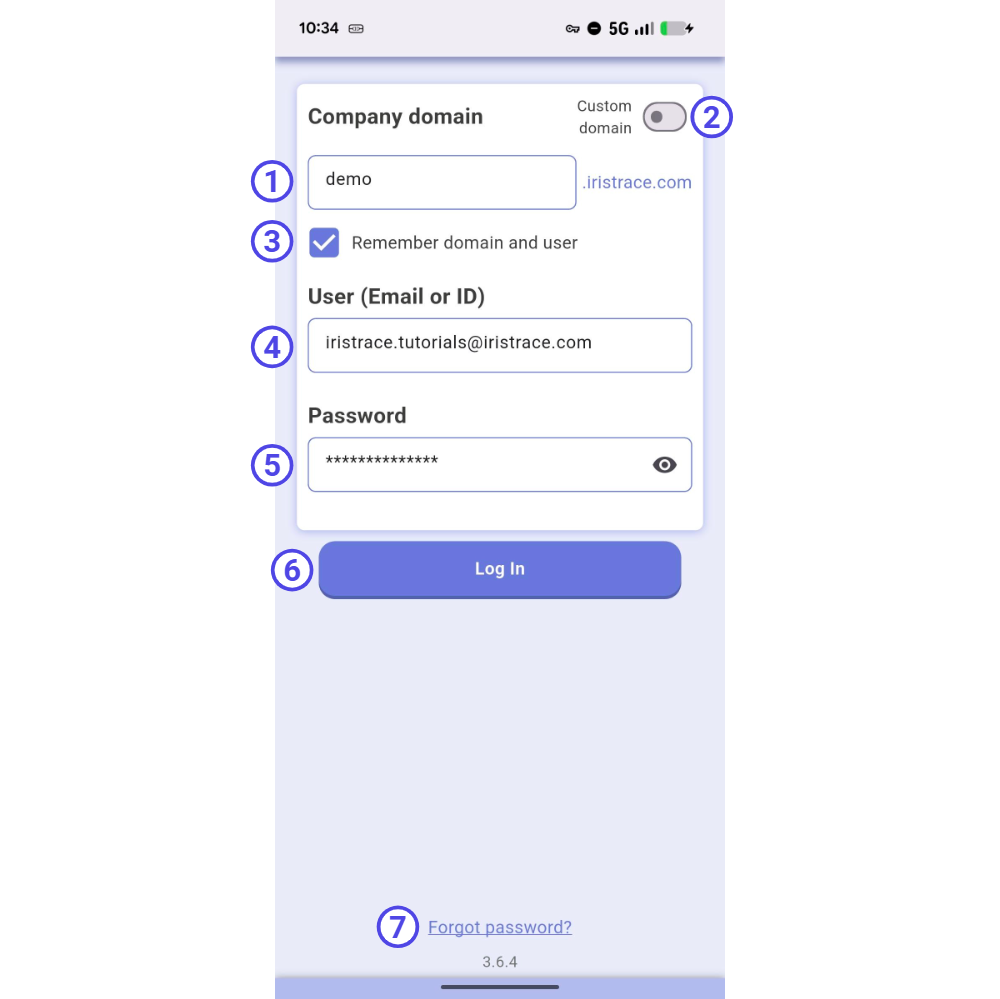
Company domain (1) #
Depending on your organization, your login uses one of two domain formats:
- Standard domain: By default, the Custom domain toggle (2) is off. Enter your company’s subdomain (e.g. “demo”) and the app will automatically complete it with “.iristrace.com”.
- Custom domain: If your organization uses its own domain, turn on the Custom domain toggle (2) and enter the full domain your administrator provided (e.g. “custom.domain.com”).
Important!: If you don’t know your company domain, contact your administrator. Without the correct domain you will not be able to log in.
Remember domain and user (3) #
Check this option to save your domain and username on this device. The next time you open the app, these fields will be filled in automatically. You will still need to enter your password for security reasons.
User (Email or ID) (4) #
Enter the email address or user ID associated with your account.
Password (5) #
Enter your password. Tap the eye icon to show or hide the characters as you type.
Log In (6) #
Once all fields are filled, tap Log In to access the app.
Forgot password? (7) #
If you don’t remember your password, tap Forgot password? at the bottom of the login screen to start the recovery process.
Password recovery dialog #
A dialog will appear with an email field. If you already entered an email in the User field, it will be pre-filled — otherwise, enter your account email. Tap Send to request a new password, or Cancel to close the dialog.
Recovery email sent #
A confirmation message will appear letting you know the recovery email has been sent. Tap Close to return to the login screen.
Check your email #
You will receive an email from no_reply@iristrace.info containing your user email and a new temporary password. Use these credentials to log in.
Important!: Check your spam or junk folder if you don’t see the email in your inbox. If you still don’t receive it, verify that the email address is correct and contact your administrator if the problem persists.

